Is Azure Advisor Telling You Everything?
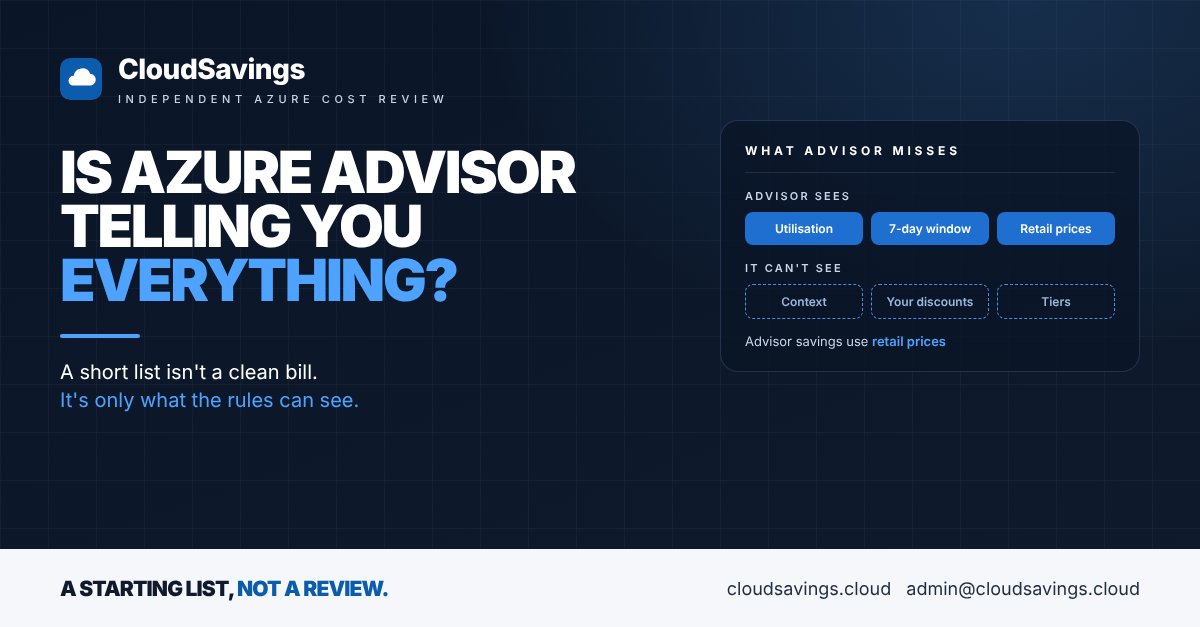
Most IT leaders we speak to have opened Azure Advisor, seen a Cost tab with a handful of recommendations, and taken it as a sign the bill is under control.
It's a reasonable assumption. Advisor is free, it's built into the portal, and it puts a savings figure next to each item. But an empty or short Advisor list doesn't mean your estate is efficient. It means Advisor didn't find anything within the rules it uses.
In our reviews, some of the largest savings sit in places Advisor doesn't look at all, and some of the savings it does show are bigger on screen than they would be on the invoice.
Why it happens
Advisor works from utilisation metrics and a fixed set of rules. It has no idea what a workload is for, who owns it, or what you've already committed to pay.
Four things follow from that.
It looks at a short window. Virtual machine right-sizing uses a 7-day lookback by default. A finance system that peaks at month-end, or a reporting server busy one week a quarter, can look idle or oversized in any given week. Microsoft lets you extend the window up to 90 days, but few organisations change it.
Its savings figures use retail prices. Microsoft states that Advisor calculates savings at retail rates and doesn't account for your discounts, reservations or savings plans. If a VM is already covered by a reservation, resizing it may save far less than Advisor shows. Moving it to a different VM family can even raise cost if the reservation was bought for the old family.
It only sees what it's allowed to see. Advisor can be configured to exclude subscriptions and resource groups. Recommendations can be dismissed or postponed. Each of those is a decision someone made once, and they're rarely revisited.
Whole categories of spend aren't on its list. At the time of writing, Microsoft's reference list of Advisor cost recommendations doesn't cover moving blob data to cooler access tiers, scheduling non-production servers off overnight, using dev/test pricing, or claiming licence benefits you already own. None of those show up as utilisation problems, so a rules engine built on utilisation can't find them.
What to check
- ✔️ Lookback period: Is VM right-sizing still on the default 7 days, or set long enough to cover your month-end and quarter-end peaks?
- ✔️ Excluded scope: Are any subscriptions or resource groups filtered out in Advisor's configuration, and does anyone remember why?
- ✔️ Dismissed and postponed items: Who dismissed them, when, and is the reason still true?
- ✔️ Savings figures: Have the top recommendations been checked against what you actually pay after reservations, savings plans and negotiated discounts?
- ✔️ Workload context: Are disaster recovery, failover and seasonal servers being judged as if they were everyday workloads?
- ✔️ Spend Advisor doesn't cover: Has anyone looked at storage tiers, out-of-hours scheduling, dev/test pricing and licence benefits separately from Advisor?
- ✔️ Ownership: Is there a named person who reviews Advisor cost recommendations each month and decides to act, dismiss or postpone?
How to check your own estate
These steps are read-only. You'll need at least Reader access across the subscriptions you want to look at.
- In the Azure portal, open Advisor and select Configuration. On the Resources tab, note any subscriptions or resource groups that are cleared. Each one is spend Advisor isn't reviewing.
- Still in Configuration, open the VM/VMSS right sizing tab and check the lookback period set for each subscription. If it's 7 days, consider whether a longer window would better reflect how your workloads behave. Changing it takes up to 48 hours to flow through and needs the right permissions, so agree it with the subscription owner first.
- Go to Recommendations, choose Cost, and change the status filter to show Dismissed and Postponed items. Download the list as CSV so you have a record of what's been set aside.
- For the three to five largest recommendations, open the resource and check whether it's covered by a reservation or savings plan. You can see this in Cost Management > Reservations or in Cost analysis by grouping on pricing model. Treat Advisor's figure as an upper limit until you've done this.
- Open Cost Management > Cost analysis at the highest scope you can, such as a management group, and use the Cost by resource view for the last full month. Take the top 20 resources by cost and compare them with the Advisor list. Any expensive resource with no recommendation is worth a conversation with its owner. It may well be justified, but nobody has checked.
- Finally, look at the categories Advisor doesn't cover: storage accounts sorted by cost, non-production VMs that run around the clock, and subscriptions that could use dev/test pricing.
The takeaway
Advisor is a good starting list, not a finished review. In FinOps Framework terms, it supports Usage Optimization, making sure resources are the right size and run only when needed, but the business context that decides what's actually worth changing still has to come from people who know the workloads.
Sources
- Microsoft Learn: Reduce service costs by using Azure Advisor
- Microsoft Learn: Azure Advisor cost recommendations reference
- Microsoft Learn: Get started with Azure Advisor
- FinOps Foundation: Usage Optimization capability
An independent view of your Azure spend. I sell no licences, managed services or remediation, so my findings have nothing attached to them.
Book a 30-minute call